Airwatch Android Enrollment Instructions
1. Search the Google Play app store for Intelligent Hub and Install
2. Launch the Intelligent Hub app
3. Enter in the email address and choose next
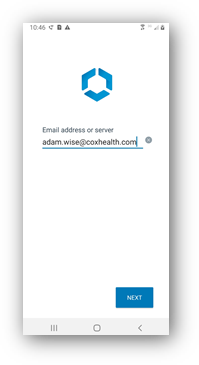
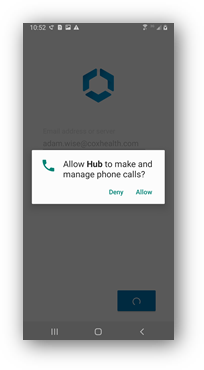
4. Choose Allow
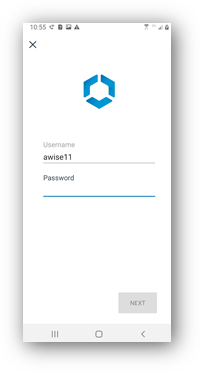
5. Enter the username and password and hit next (NOT the O365 username format)
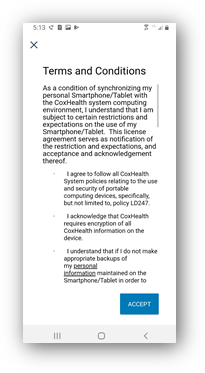
6. Choose Accept
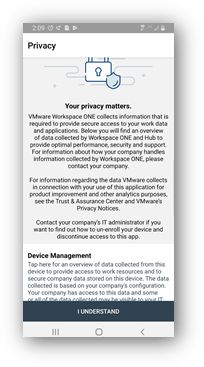
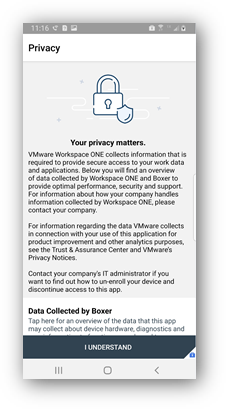
7. Choose I Understand
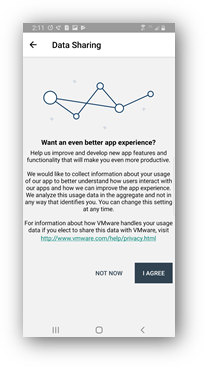
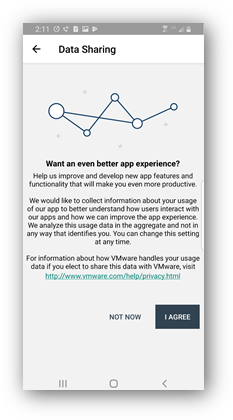
8. Choose Not Now
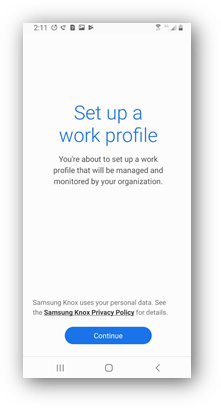
9. Choose Continue
10. Now swipe away Intelligent Hub
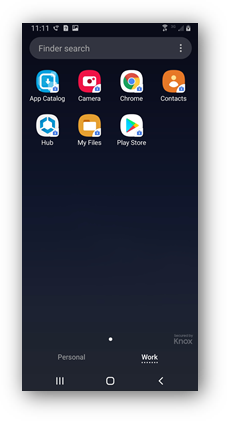
11. Swipe up on your screen to show all apps, choose Work at the bottom
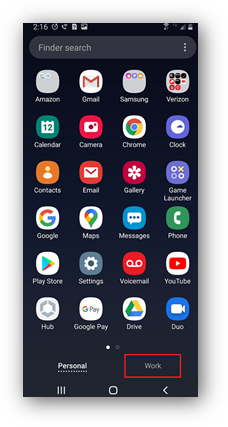
12. Choose the Play Store from the Work list of apps
13. Choose the Boxer – Workspace ONE app and install it
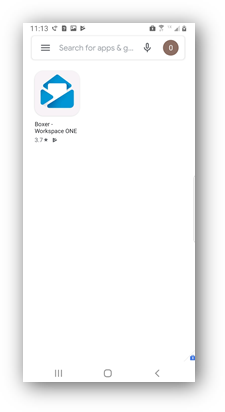
14. Select Open after Boxer installs
15. Choose I Understand
16. Choose Not Now
17. Enter your CoxHealth password
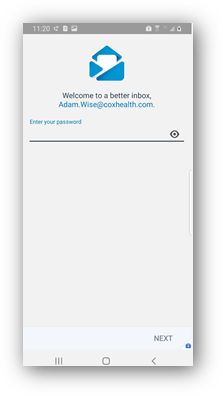
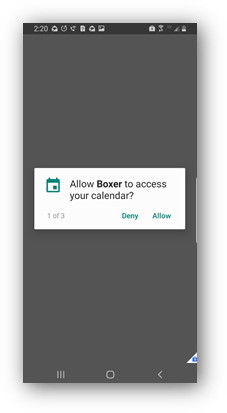
18. Choose Allow to access the calendar
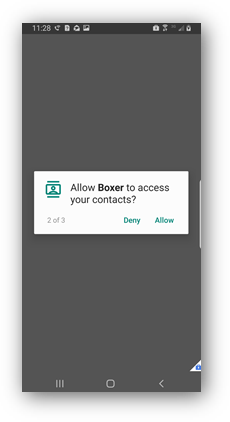
19. Choose Allow to access Contacts
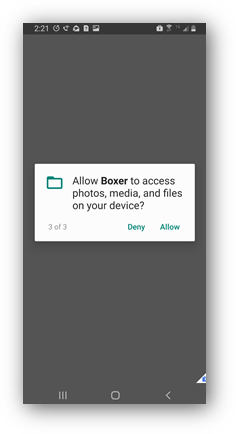
20. Choose Allow again
21. Choose Open Settings
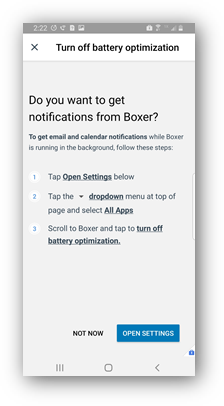
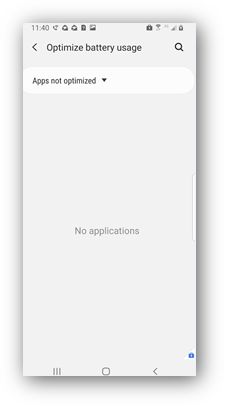
22. Choose Apps not optimized, then All
23. Switch the Boxer app to off, then tap the back button at the bottom right
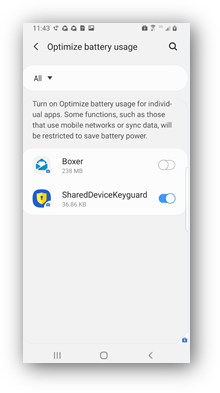
24. Enrollment is complete. The Boxer app, is the Android email app
Un-enrollment Instructions
1. Under Work Apps > Hub > This Device > Enrollment > Unenroll device