Airwatch iOS (iPhone/iPad) Enrollment Instructions
1. Search the App Store for the Intelligent Hub app and install.
2. Launch the Intelligent Hub app
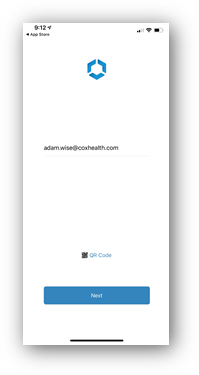
3. Enter in the email address:
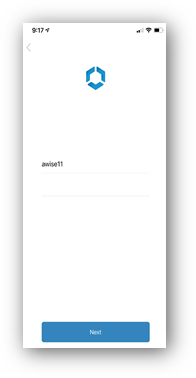
4. Enter the username and password and hit next (NOT the O365 username format)
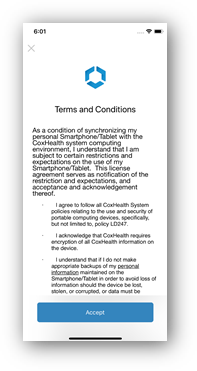
5. Accept the Terms and Conditions
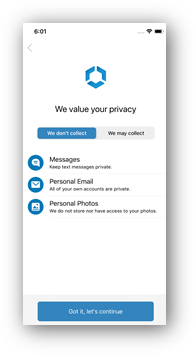
6. Tap "Got it, let's Continue"
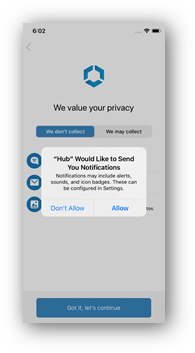
7. Tap “Allow” to allow notifications
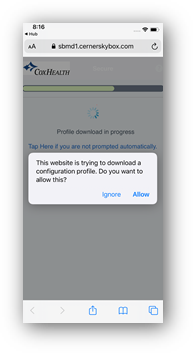
8. The next screen should automatically switch to Safari to download a profile
9. Choose Allow:
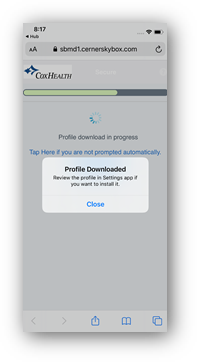
10. Choose Close
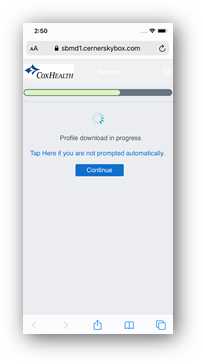
11. Choose continue
12. Choose Open
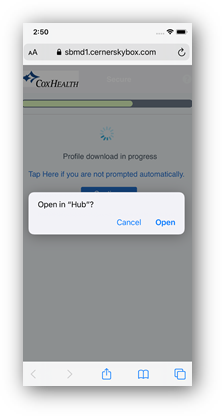
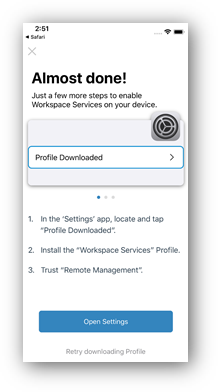
13. Choose Open Settings
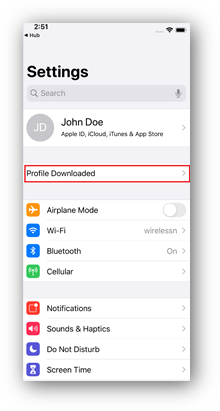
14. Choose “Profile Downloaded”, at the top
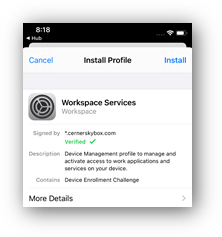
15. Choose Install
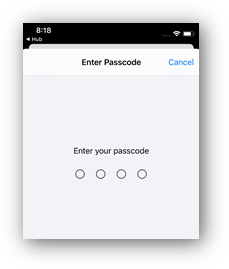
16. Enter Passcode (if applicable)
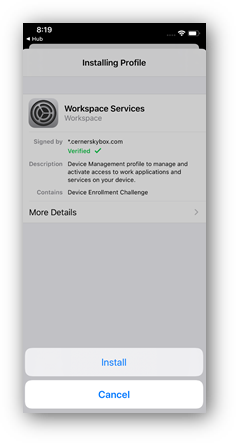
17. Choose Install
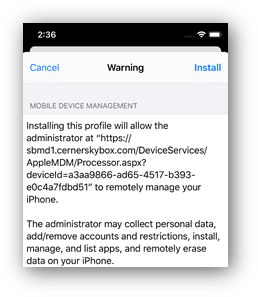
18. Choose Install again
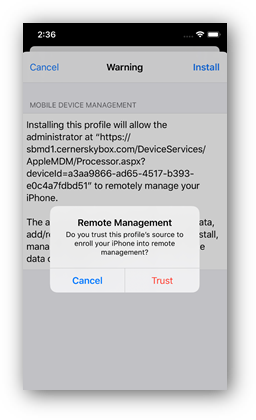
19. Choose Trust
20. Choose Done
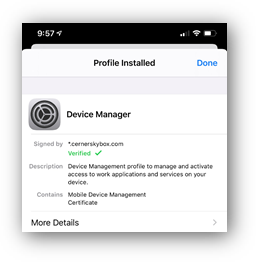
21. After this point, a prompt for a password for CoxHealth-Email could prompt at any time during the next few steps. Be sure to enter the password when it prompts
22. Go back to the Intelligent Hub app and choose Done
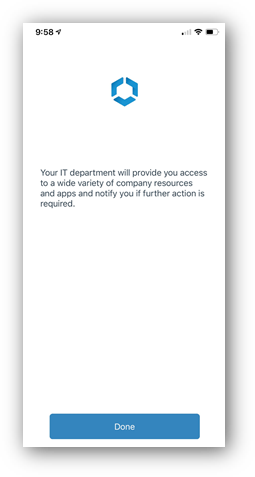
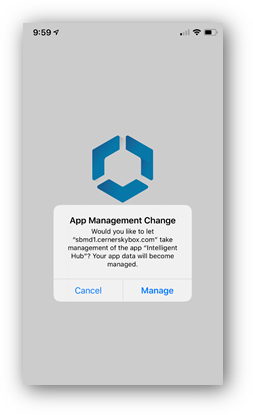
23. Choose Manage
24. This next setting regarding location services is a personal preference
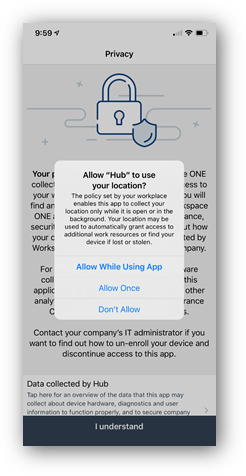
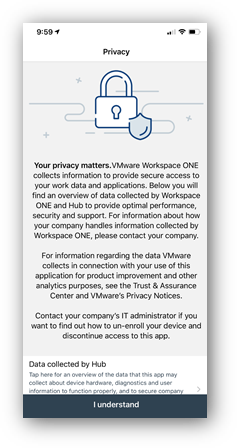
25. Choose I understand
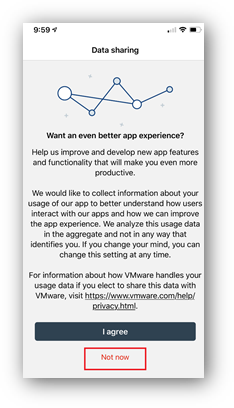
26. Choose Not now
27. Swipe away and close the Intelligent Hub app
28. Launch the default iOS mail app
29. If the password has not prompted yet, it may prompt now. Be sure to enter in your CoxHealth password
30. Email should now start populating in the inbox. This could take up to 5 minutes. As long as there is no “account error” at the bottom of the mail app screen, the password was likely entered correctly.
31. You can also go to Settings > Passwords & Accounts > CoxHealth-Email > Account, and enter in your password here. DO NOT change any other settings on this screen.
Un-enrollment Instructions
1. Settings > General > Device Management > Device Manager > Remove Management