Badging into Tap-n-Go PCs.
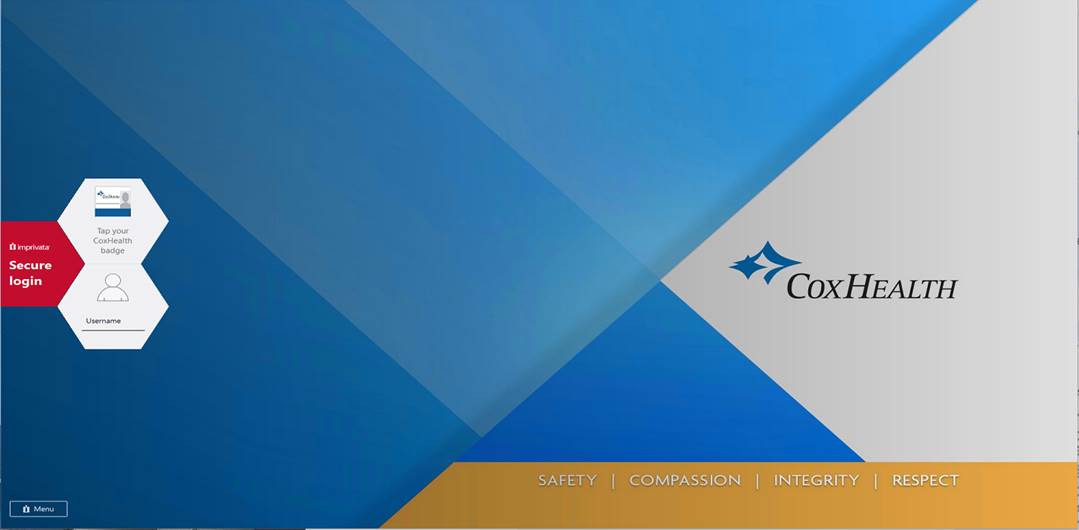
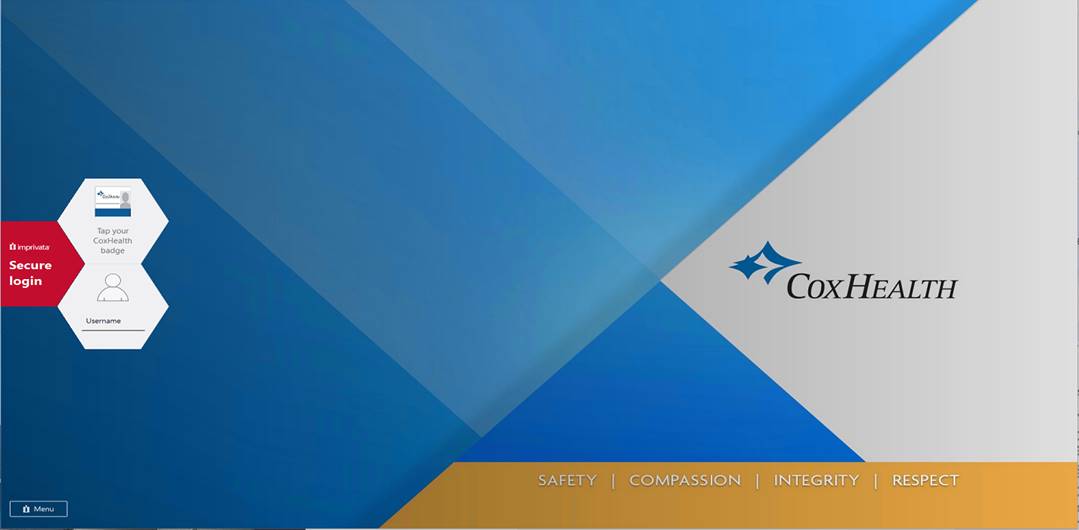
New Imprivata Tap-n-Go lock screen. Tap badge on badge reader when entering patient room.

When tapping your badge at the beginning of your shift, you will be required to manually enter your password. You will not have to manually enter your password for another 12 hours.
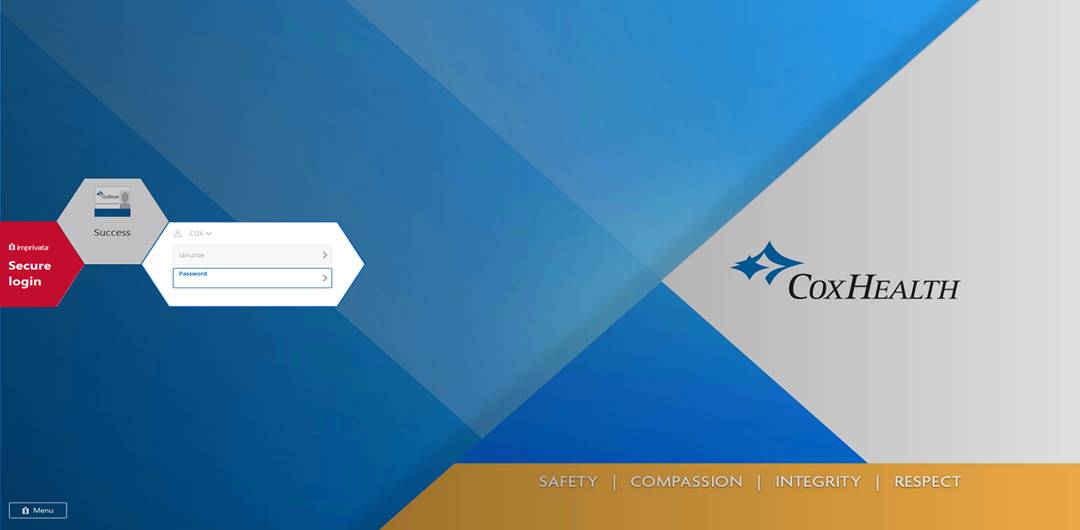
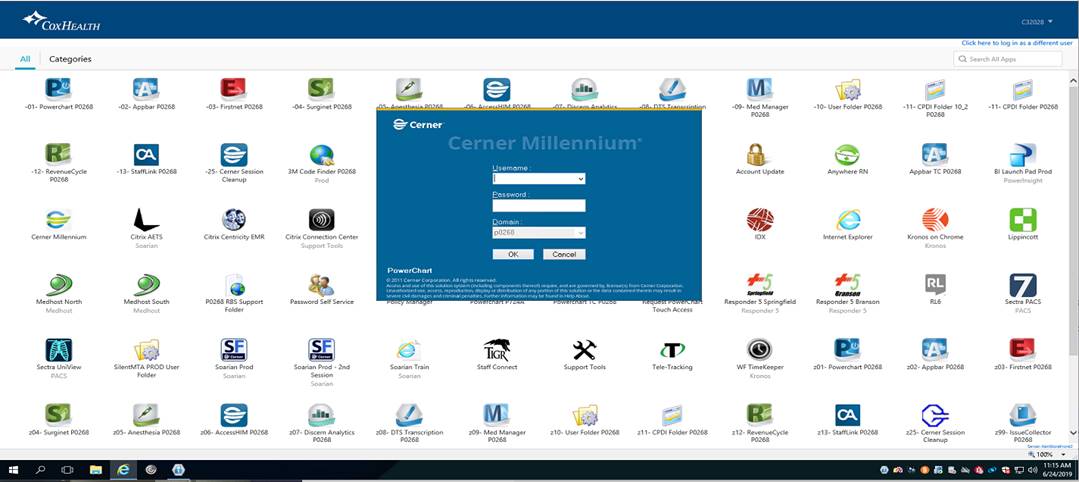
After entering your password, the PC will become unlocked. The application you are assigned to (PowerChart, FirstNet, SurgiNet) will automatically launch with your log in credentials. [Do not click on application. Application will launch automatically]
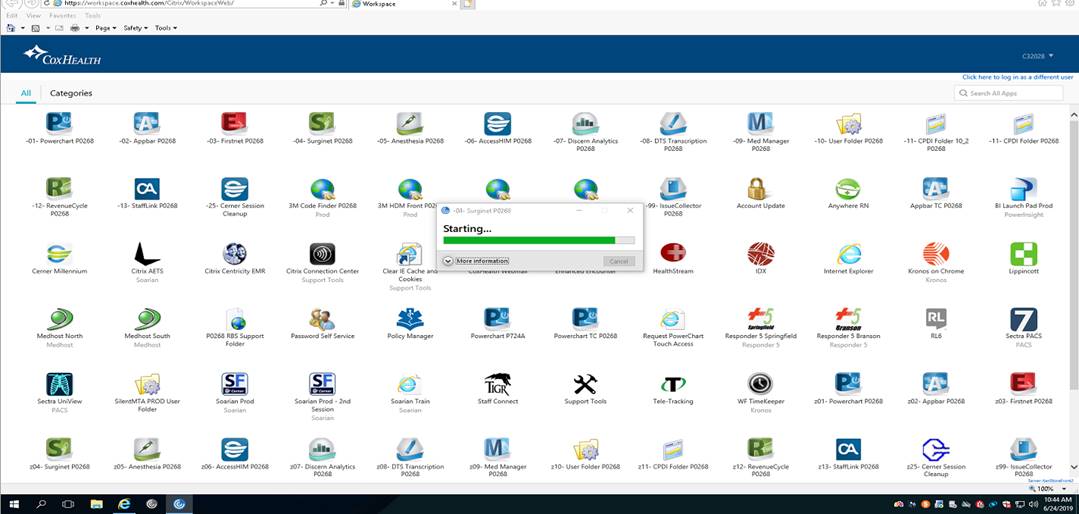
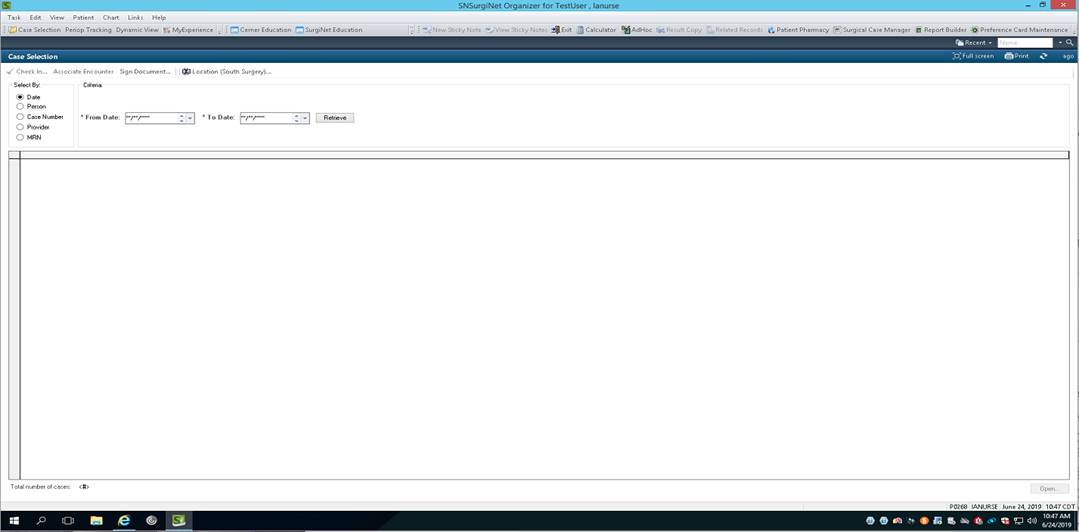
When you are finished in the patient room tap your badge onto the badge reader. This will lock the PC and return to the Imprivata Tap-n-Go lock screen.
Issues with badge reader or can’t
badge in?
If there are issues with the physical badge reader or you cannot badge into the PC, you can hit the Escape (Esc) key on the keyboard while on the lock screen below to unlock the PC.
Do you need to launch another
application other than the auto-launched application?
You can do
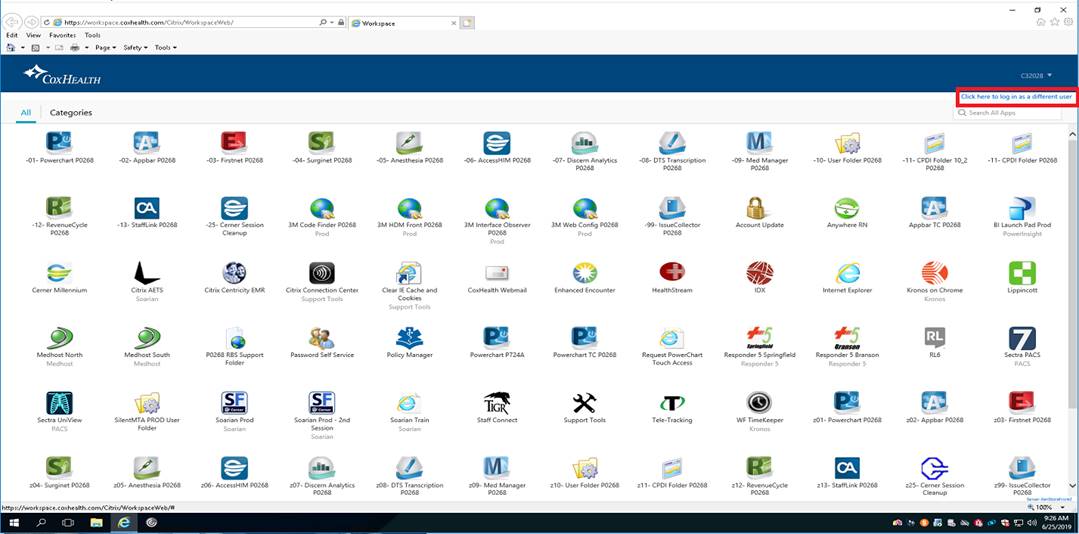
this by clicking on the “Click here to log in as a different user” option and
log in with your credentials.
**NOTE: You will NOT be able to
launch an application other than the auto-launched application unless you
follow this step**
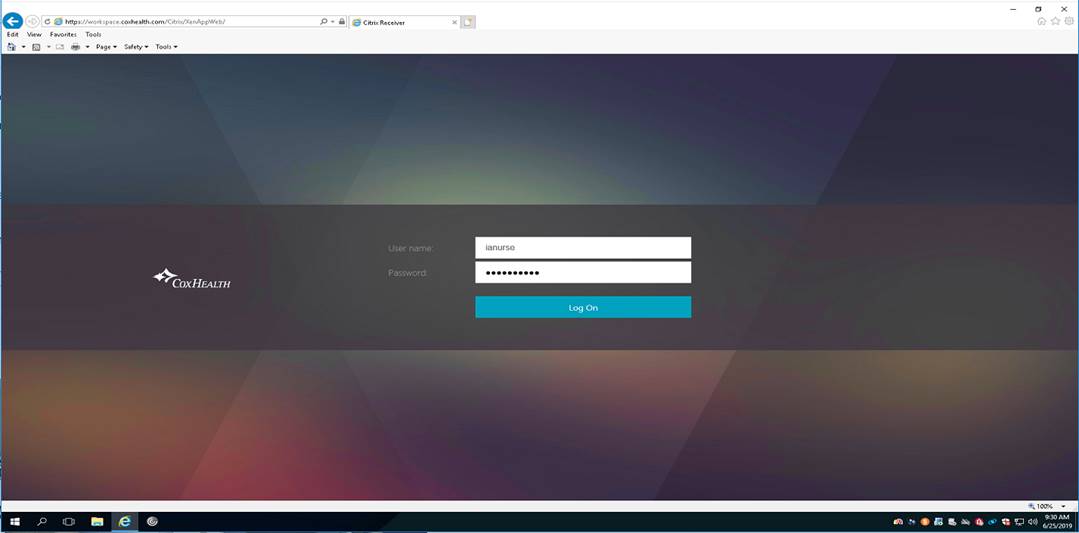
Enter your
Cox log in credentials.
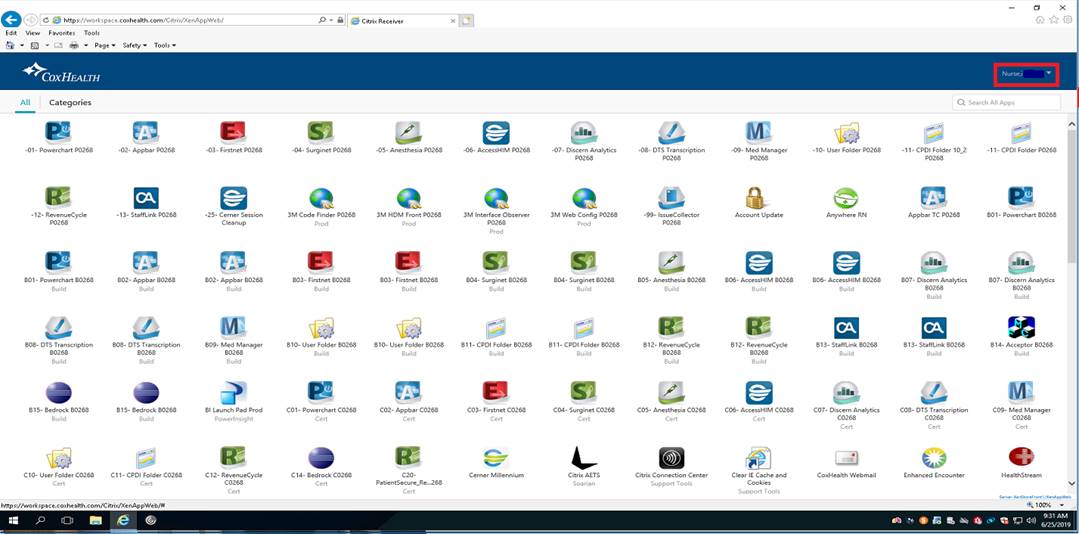
You will
then see your name in the area marked below. You can now launch other Workspace
applications.
DON’T
FORGET!
Please remember to always ‘Tap Out’ whenever you are
about to leave the room or when you are finished working on the PC. This will
ensure your session is properly closed out and secured.
If you have any questions or run into any problems,
please contact the Help Desk at 417-269-3153. Thank you!
-Si³